 Save
Save
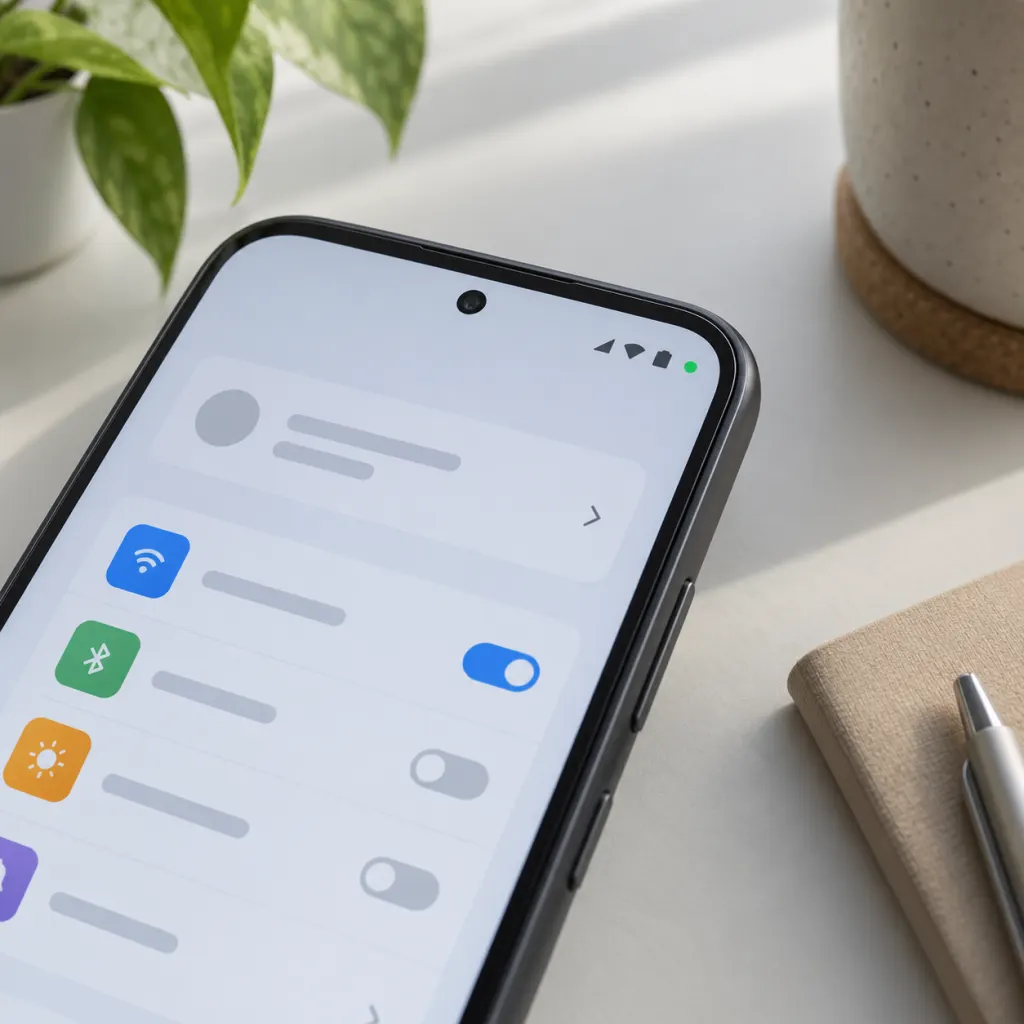
The green dot on many Android phones is a privacy indicator. In plain terms, it usually means an app is using, or has just used, your camera or microphone. Most of the time that is ordinary: you might be on a call, recording a short voice message, scanning a code, taking a photo, using a navigation feature with voice, or joining a video meeting. The dot becomes useful when it appears and you cannot connect it to anything you are doing. Camera and microphone access is worth noticing because those sensors can reveal private sound, images, and surroundings. The NIST Mobile Threat Catalogue describes camera and microphone access on Android as sensitive permission-based access, and the FTC advises phone users to review app permissions and turn off unnecessary access. The dot is not proof of wrongdoing by itself. It is a prompt to pause, identify the app, and decide whether that access still belongs on your phone.
What the Green Dot Usually Means
On many current Android devices, the small green dot near the top of the screen appears when the operating system detects camera or microphone activity. Depending on the phone maker and Android version, the indicator may begin as a small icon, then shrink into a dot. Some phones show a camera symbol, a microphone symbol, or a brief chip in the notification shade before it settles into that small signal. The exact look can vary across Samsung, Pixel, Motorola, OnePlus, and other Android-based phones, but the purpose is the same: give you a visible cue when a sensitive sensor is active.
The dot is best understood as a transparency feature, not an alarm. A phone cannot know whether every use is welcome; it can only show that access is happening. A camera app, video call, voice recorder, voice assistant, QR scanner, social media recorder, translation tool, banking identity check, or messaging app may all have legitimate reasons to trigger it. The useful question is not simply, "Why is there a dot?" It is, "Does the app using the camera or microphone match what I am doing right now?"
Why It Can Appear During Ordinary Phone Use
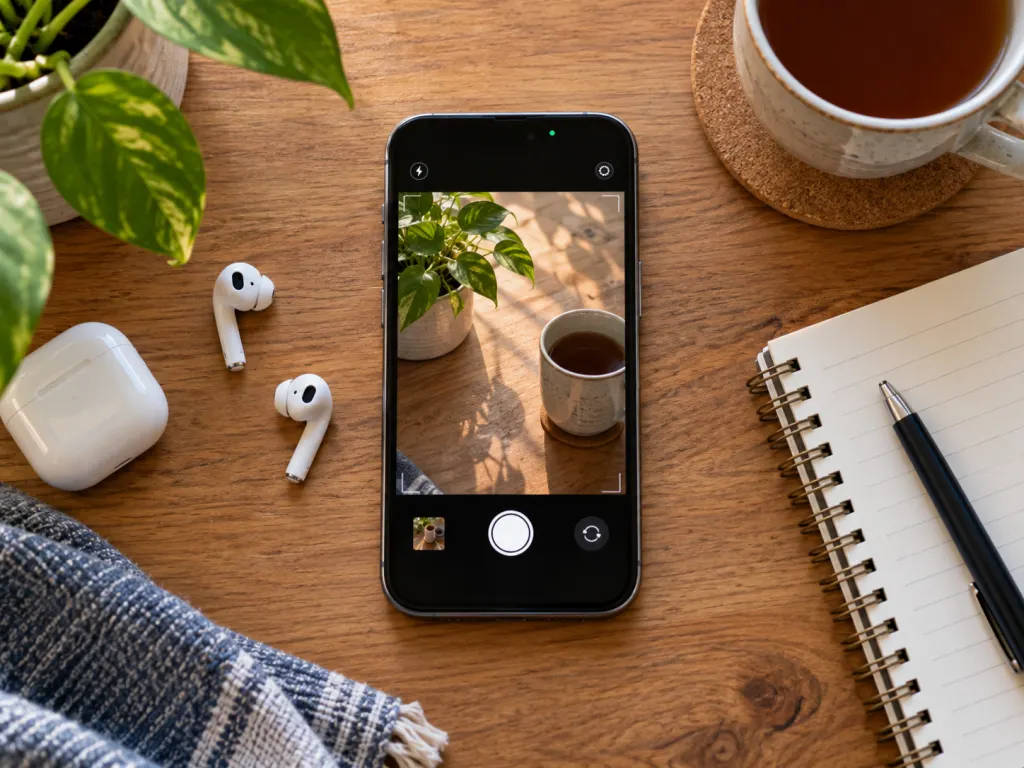
The green dot often appears at moments that are easy to overlook. A video meeting app may keep the microphone ready after you join, even before you speak. The FTC notes that video meeting tools can have camera or microphone settings that should be checked before a call, because those tools may be on by default in some situations (FTC video conferencing guidance). A messaging app may briefly use the microphone when you hold a voice-message button. A shopping or banking app may request the camera to scan a card, code, document, or face-verification frame. A browser page can also request access if you gave it permission earlier.
Common, ordinary triggers include:
- Taking a photo, recording a video, or scanning a QR code.
- Joining a video call, audio call, webinar, or live stream.
- Recording a voice note, dictating text, or using speech-to-text.
- Using an app feature that listens for voice commands.
- Letting an app scan a receipt, document, barcode, or payment card.
- Opening a social media camera, story recorder, or live feature.
There is no need to panic when the dot matches one of those actions. The dot is doing its job by making the access visible.
How to Check Which App Is Behind the Dot
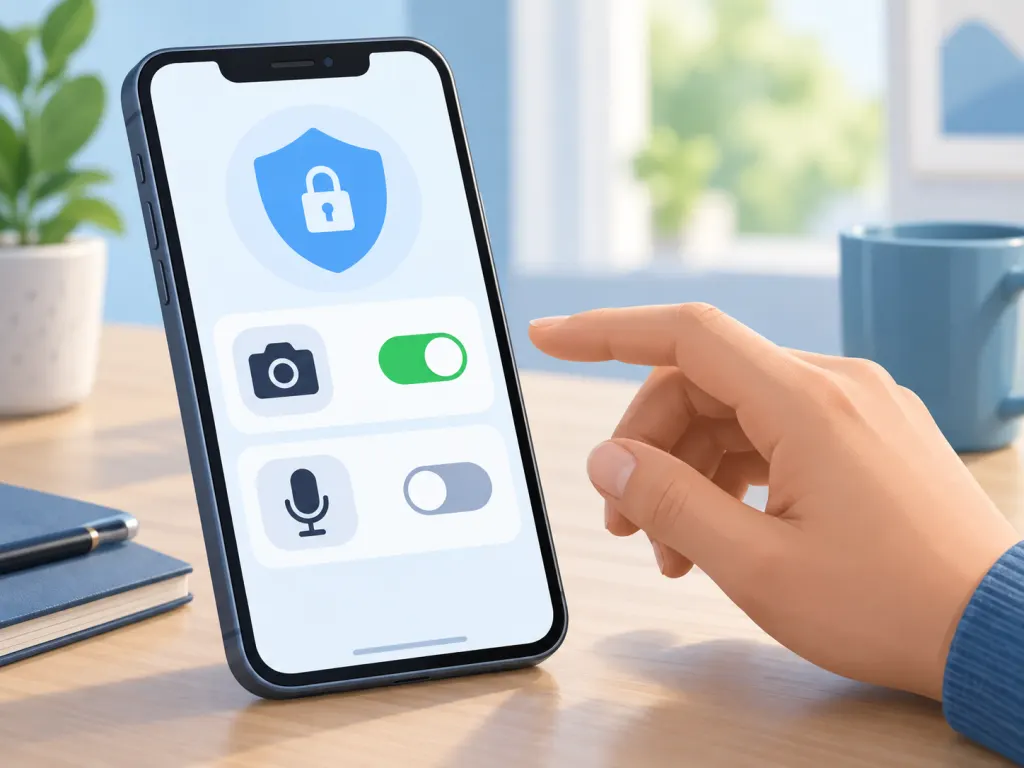
When the dot appears and you are unsure why, start with the least disruptive check. Swipe down from the top of the screen to open your notification shade or quick settings. On many Android phones, the expanded shade will show a camera or microphone indicator, and tapping it may show the app involved. If that does not work on your phone, open Settings and look for Privacy, Security and privacy, Permission manager, Privacy dashboard, or a similar menu. Phone makers name these menus differently, but the destination is usually a list of apps that have permission to use the camera, microphone, location, contacts, files, or photos.
The FTC advises people to use smartphone privacy settings to see what information apps can access and to consider turning off permissions that are not needed (FTC online privacy guidance). NIST also advises app developers to request only the minimum device sensors and services needed for an app to work (NIST mobile sensor guidance). Those two ideas meet in the same practical place: if a flashlight, calculator, coupon, wallpaper, or casual game wants microphone or camera access and you cannot explain why, that permission deserves a closer look.
What to Do If the App Does Not Make Sense
If the app shown by the indicator does not fit what you are doing, close the app first. Then review its permissions. On many Android phones, you can open Settings, choose Apps, select the app, and open Permissions. You may see options such as allow only while using the app, ask every time, or do not allow. Pick the least access that still lets the app do what you actually use it for. If you use a messaging app for video calls, camera and microphone access may make sense while the app is open. If you only use that app to read updates, it may not.
Next, check whether the app is still useful, current, and from a source you trust. The FTC recommends keeping phone software and apps updated because updates often include security fixes (FTC phone security guidance). If an app is unfamiliar, unused, poorly reviewed, or asking for more access than its purpose requires, uninstalling it is often cleaner than trying to manage a long list of permissions. After removing or changing permissions, restart the phone and watch whether the dot returns during ordinary use.
Permissions Are Not All or Nothing
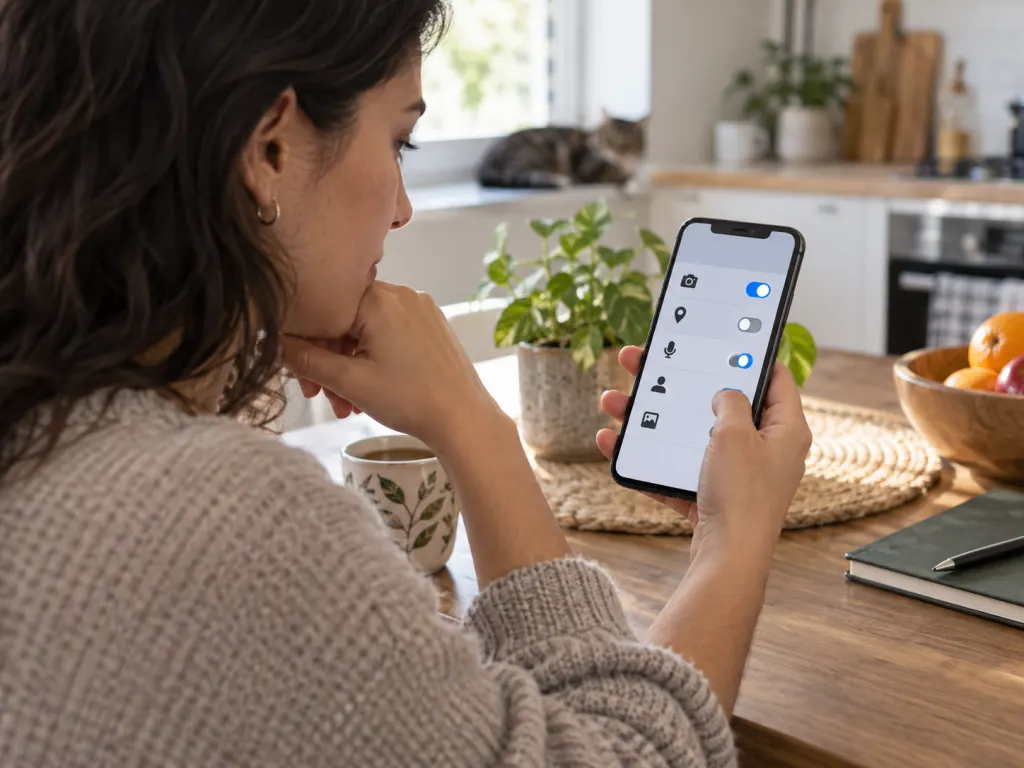
One reason the green dot is helpful is that app permissions can drift over time. You may have granted camera access months ago for one task and forgotten about it. You may have tested a voice feature once, then kept the microphone permission in place. You may have installed an app before Android added newer controls, or moved your data from an older phone that carried settings forward. A permission that made sense once can become unnecessary later.
Think in terms of purpose. A video calling app needs camera and microphone access when you are on a call. A note-taking app may need microphone access if you record audio notes, but not if you only type. A delivery app may need camera access if it scans barcodes or receipts, but not for basic order tracking. A photo-editing app may need access to selected photos, but may not need the microphone. The FTC also reminds readers to check what information an app wants before downloading and to ask whether that access is actually needed (FTC privacy advice).
Newer Android versions also give you more flexible permission choices than older phones did. Some apps can be limited to selected photos or videos rather than broad media access. Camera and microphone access can often be allowed only during active use. If a permission choice interrupts a feature you rely on, you can usually turn it back on later. That makes permission review a reversible, practical habit rather than a one-time decision.
When the Dot Points to a Larger Phone Concern
Most green-dot moments are ordinary, but patterns matter. Be more cautious if the dot appears repeatedly when the phone is idle, if it is linked to an app you do not recognize, if an app name looks intentionally generic, or if settings show camera or microphone access by apps you never use. The FTC explains that hidden monitoring software can be difficult to detect and may use a phone's microphone, messages, photos, and other information without the owner realizing it (FTC stalkerware guidance). That does not mean every odd dot is hidden software. It does mean unexplained sensor use deserves calm follow-up.
If you think someone else may have installed software on your phone, avoid rushing into changes on that device if doing so could create conflict. Use a different trusted device to research options, change key account passwords from a safe place, and consider help from a qualified digital-security professional or local support organization. If the concern is only a strange app, simpler steps usually come first: uninstall the app, update the phone, review account sign-ins, and make sure the screen lock is strong.
The Limits of the Green Dot
The green dot is useful, but it is not a complete privacy system. It tells you about current or very recent access to certain sensors; it does not explain what the app does with data after access is granted. It does not audit every network connection, every ad tracker, or every file an app can read. It also cannot tell whether a camera or microphone use is thoughtful, necessary, excessive, or poorly explained. For that, you still need ordinary privacy habits: reading permission prompts, deleting apps you no longer use, checking account settings, and updating software.
The dot also may behave differently across phones. Android is an operating system used by many manufacturers, and each maker can add its own menus, icons, privacy dashboard, and notification style. A Samsung phone and a Pixel phone may show the same underlying idea with slightly different wording. If you cannot find the app behind the indicator, search inside your phone's Settings app for terms such as privacy, permission manager, camera access, microphone access, or privacy dashboard. Those searches are often faster than digging through menus by memory.
A Simple Monthly Phone Privacy Routine
You do not need to inspect every setting every day. A short routine once a month is enough for most people and makes the green dot easier to interpret when it appears. Open the app list and remove anything you no longer use. Review camera and microphone permissions. Update apps and the operating system. Check which apps recently used sensitive sensors if your phone provides that history. Finally, make sure your lock screen still uses a strong PIN, password, or biometric unlock that only you control.
Use this simple decision rule: if the green dot appears while you are doing something that obviously uses sound or images, keep going. If it appears and you cannot explain it, identify the app. If the app has a good reason, adjust permission only if you prefer tighter control. If the app has no good reason, remove the permission or uninstall it. The dot is small, but it gives you a practical moment to bring your phone's access back in line with what you actually want.
Wrap-Up
The green dot on many Android phones is a camera or microphone privacy indicator. It is normal during calls, recording, scanning, dictation, and camera use. It deserves attention when it appears without a clear reason, points to an unfamiliar app, or keeps returning during idle moments. The best response is measured: open quick settings or privacy settings, identify the app, review permissions, update software, and remove apps you no longer need. The dot does not tell the whole privacy story, but it gives you a useful signal at exactly the moment camera or microphone access matters.
Frequently Asked Questions
- → Does the green dot mean someone is watching me?
Not by itself. The green dot means the camera or microphone is active or was active very recently. That can happen for normal reasons, such as a video call, voice note, camera scan, or speech-to-text feature. Check which app is involved before drawing a conclusion.
- → Why does the green dot appear after I close the camera?
It may linger briefly after sensor access ends, or another app may still be using the microphone or camera. Swipe down to check the indicator, then review recent camera and microphone permissions in your privacy settings if your phone provides that history.
- → Can I turn off the green dot?
On most Android phones, the indicator is part of the privacy interface and is not meant to be disabled. A better approach is to control which apps can use the camera or microphone, then leave the indicator visible so you have a clear signal when access happens.
- → Which apps commonly trigger the green dot?
Camera apps, video meeting tools, phone and messaging apps, voice recorders, social media story tools, QR scanners, translation apps, and banking apps can all trigger it. The key question is whether the app's access matches the feature you are using at that moment.
- → What should I do if I cannot identify the app?
Open Settings and search for privacy, permission manager, camera access, microphone access, or privacy dashboard. If your phone still does not show a clear app name, close recent apps, restart the phone, update software, and review installed apps for anything unfamiliar or unused.
References
This content was developed and refined using reliable sources.
- https://pages.nist.gov/mobile-threat-catalogue/application-threats/APP-19.html
- https://consumer.ftc.gov/articles/how-websites-and-apps-collect-and-use-your-information
- https://consumer.ftc.gov/articles/how-protect-your-phone-hackers
- https://consumer.ftc.gov/consumer-alerts/2020/04/stay-safe-while-video-conferencing
- https://consumer.ftc.gov/articles/stalkerware-what-know
- https://consumer.ftc.gov/articles/heads-up