 Save
Save
Your phone can probably do more than open apps and send messages. The best hidden smartphone tricks are practical settings that save time, reduce everyday friction, and protect the information stored on the device. Start with the high-value basics: lock the phone, turn on automatic updates, back it up, set up a lost-device finder, review app permissions, and use stronger account sign-in options where they are offered. The Federal Trade Commission specifically recommends locking phones, updating software, backing up data, and enabling features that can help locate, lock, or erase a lost phone FTC. After that foundation is in place, smaller shortcuts such as quick camera access, notification controls, widgets, built-in search, and share-menu cleanup can make the same phone feel much easier to use.
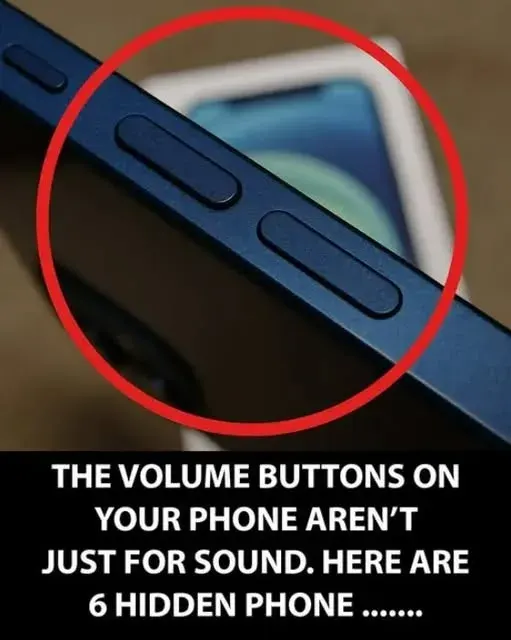
The circled buttons are the volume controls
The photo specifically highlights the phone’s volume buttons. One verified extra use on iPhone is taking a photograph in the Camera app: Apple’s camera guide says either volume button can act as the shutter. Other shortcuts depend on the phone model, operating system and settings; there is no universal set of six identical hidden functions for every phone. The broader settings below are separate useful features, not six promises established by these buttons.
Start With the Tricks That Actually Matter
Some smartphone tricks are clever for a day; others keep helping quietly every time you use the device. A good approach is to divide them into three groups: access, protection, and speed. Access tricks help you reach common tools faster, such as the camera, flashlight, timer, notes, translation, or scanning feature. Protection tricks reduce the chance that a lost phone, fake message, suspicious app, or public network causes trouble. Speed tricks remove small daily annoyances: fewer taps to share a photo, a faster way to find a setting, or a cleaner notification setup.
The order matters. A shortcut is less useful if the phone is easy for someone else to open. A fancy home screen is less useful if backups are off. That is why this guide starts with settings that protect the device and then moves into the everyday conveniences most people miss. Here is the quick setup checklist before you explore the fun parts:
- Use a strong screen lock and a short automatic-lock time.
- Turn on automatic system and app updates.
- Back up photos, contacts, notes, and important files.
- Enable the built-in lost-device feature before you need it.
- Review app permissions and remove apps you no longer use.
- Use multifactor authentication, passkeys, or a password manager where available.
- Check that emergency alerts are enabled in your phone settings.
Make the Lock Screen Work Harder
A lock screen is more than the place where notifications appear. It is the first control point for the phone. The FTC recommends setting a phone to lock when it is not being used and using at least a six-digit passcode FTC. If your phone supports biometric unlock, you can usually combine convenience with a passcode that is harder to guess. The small trick many people miss is the automatic-lock timer. A phone that waits a long time before locking can remain open after it is set down. Shortening that timer makes the lock screen do its job without requiring you to remember anything.
Also look at what is visible while the phone is locked. Many phones let you decide whether message previews, wallet cards, smart-home controls, quick replies, or notification details appear before unlock. A private setup does not have to hide everything, but it should avoid showing sensitive one-time codes, account alerts, or personal messages to anyone near the phone. If you often place your device on a table, the related article Should You Place Your Phone Screen Up or Down? explains another small habit that changes what others can see.
Turn Updates, Backups, and Lost-Phone Tools Into Set-and-Forget Features
Automatic updates are one of the least glamorous hidden tricks, but they are among the most useful. The FTC says operating system updates often include important protections against security threats and recommends setting phones and apps to update automatically FTC. Cyber.gov.au gives similar advice, noting that updates fix weaknesses in systems and apps and can often be enabled in settings Cyber.gov.au. If you usually dismiss update prompts, check whether your phone can install updates overnight while charging.
Backups deserve the same treatment. A backup is not exciting until a phone is lost, damaged, replaced, or reset. The FTC recommends regular phone backups so important information remains available if the device is lost FTC. Cyber.gov.au also recommends regular backups and says they can help recover data if a phone is lost, stolen, or damaged Cyber.gov.au. The hidden trick is to verify the backup, not just assume it exists: open the backup settings, check the most recent date, and confirm that the items you care about are included.
Use the Lost-Device Feature Before the Phone Goes Missing
Most people think about lost-phone tools too late. The setup usually has to happen while the phone is still in your possession. The FTC notes that mobile operating systems include tools that can help find a lost phone, lock it, or erase it if it may have been stolen FTC. Cyber.gov.au also recommends using remote tracking features to help find or remotely erase a lost or stolen device Cyber.gov.au.
Open your phone settings and search for terms such as “find,” “lost,” “device protection,” or “remote lock.” Make sure the feature is enabled, that your account is signed in, and that you know where to go from another device if the phone disappears. This is also a good moment to add a trusted recovery email or phone number to your account. The trick is not dramatic; it is preparation. Five minutes now can save hours later.
Review App Permissions Like a Control Panel
Apps often ask for permissions at the moment you are trying to do something else, so it is easy to tap through without thinking. The better trick is to review permissions later from the phone settings, when you are not rushed. Cyber.gov.au recommends reviewing app permissions and removing apps that request excessive or suspicious access, such as access to photos or the microphone when that access is not needed Cyber.gov.au.
Look for a privacy or permissions dashboard in settings. Check categories such as location, camera, microphone, contacts, photos, files, Bluetooth, and local network access. The goal is not to block every permission. A map app needs location for navigation; a video app may need the camera if you record inside it. The useful question is narrower: does this specific app still need this specific access for the way you use it now? If the answer is no, change the permission to a more limited option or remove the app.
Location access deserves special attention because many phones offer more than one level. You may be able to allow access only while using the app, share an approximate location instead of a precise one, or approve access one time. Names vary by device, but the principle is the same: match the permission to the task.
Make Public Wi-Fi, Bluetooth, and QR Codes Less Risky
Free Wi-Fi and quick QR codes are convenient, but they are not always neutral. Cyber.gov.au warns that public Wi-Fi can expose information sent or received on the network and recommends avoiding automatic connection to public Wi-Fi, confirming the official network name, and disconnecting when finished Cyber.gov.au. A practical hidden trick is to open saved Wi-Fi networks and remove old hotel, airport, cafe, or event networks you no longer use. That reduces accidental reconnection later.
The same source recommends turning off Bluetooth and Wi-Fi when they are not in use and being cautious with QR codes, because a code can direct a phone to an unwanted website, app, or network Cyber.gov.au. Before scanning a QR code, pause long enough to check where it is posted and what action your phone says it will take. A code on a permanent menu board or official counter is different from a loose sticker placed over another code. If something looks odd, use the business website or ask staff for the correct link.
Use Stronger Sign-In Options Where Your Phone Supports Them
Your phone is often the key to your email, banking, shopping, cloud storage, and social accounts. NIST explains that multifactor authentication adds another layer when a password is used and can make accounts harder to access with just a stolen password NIST. NIST also describes passkeys as a newer way to prove identity online by storing a private digital key on a device you already carry, such as a phone NIST.
The hidden trick is to check account security settings inside important apps, not just phone settings. Look for options named passkey, two-step verification, multifactor authentication, authenticator app, security key, or password manager. NIST notes that some multifactor methods are stronger than others and that text codes are particularly vulnerable compared with some alternatives NIST. You do not need to change every account in one sitting. Start with email, cloud storage, financial apps, and any account that can reset your other logins.
Spot Message Tricks Before You Tap
Smartphones make it easy to act quickly, which is exactly why scam messages often push urgency. The FTC says phishing emails and text messages may claim suspicious activity, account problems, payment issues, unexpected invoices, refunds, or free offers to get people to click links or share information FTC. A useful phone trick is to slow the message down: do not use the link in the message. Open the app or website yourself, or contact the company through a method you already know is real.
Many phones also let you filter unknown senders, report spam texts, block callers, or silence unknown calls. Those features do not identify every fake message, but they reduce noise and make suspicious messages stand out. The FTC recommends reporting phishing text messages by forwarding them to SPAM, or 7726, and reporting phishing attempts to the FTC FTC. If you receive a message that asks for immediate payment, account confirmation, gift cards, a delivery fee, or a login code, treat it as a prompt to verify through a separate channel.
Check Emergency Alerts and Offline Basics
Emergency alerts are easy to forget because they are meant to stay in the background until they are needed. The National Weather Service explains that Wireless Emergency Alerts are messages sent directly to phones by authorized government alerting authorities through mobile carriers National Weather Service. The same page explains that the system broadcasts to compatible phones connected to affected cell towers and does not track individual phones National Weather Service. On most phones, alert controls are in notification, emergency, or public-safety settings.
Do not stop at alerts. Add a few offline conveniences: save key addresses in maps, download travel documents before a trip, keep important confirmation numbers somewhere accessible, and add a lock-screen message that can help an honest finder return the phone without exposing private information. If you use your phone for household reminders and practical shortcuts, you might also enjoy broader everyday guides such as 15 Smart Baking Soda Cleaning Tricks for Home, but keep phone emergency tools in their own reliable place.
Use Built-In Search Instead of Hunting Through Menus
One of the most overlooked smartphone shortcuts is the search box inside settings. Instead of remembering where a feature lives, search for words such as backup, lock, notifications, permissions, location, emergency, display, storage, keyboard, camera, or battery. This is especially useful after a system update moves settings around. It also helps when you are following advice written for a different phone model and the menu names do not match exactly.
Use the same idea on the home screen. Many phones have a system-wide search that can find apps, contacts, notes, calendar items, settings, files, or web suggestions from one place. If you have several screens of apps, search is faster than swiping. You can make it even better by deleting apps you no longer use. Cyber.gov.au recommends removing apps when they are no longer needed Cyber.gov.au. Fewer apps mean fewer icons, fewer notifications, and fewer permission decisions.
Clean Up Notifications, Widgets, and the Share Menu
Notifications are useful only when they help you decide what to do next. A hidden trick is to adjust notifications by app, not all at once. Keep time-sensitive alerts for messages, calendars, delivery updates, and security notices. Quiet or bundle apps that send promotions, repetitive social updates, or low-value reminders. Many phones also let you choose whether notifications make a sound, appear on the lock screen, display a preview, or sit silently in a notification center.
Widgets and quick settings can also remove dozens of small taps each week. Put the tools you use most often within reach: flashlight, timer, notes, voice memo, calculator, hotspot, screen recording, translation, magnifier, wallet, or focus mode. Then remove tiles you never use. The same cleanup applies to the share menu. If your phone lets you pin favorite apps or contacts, place the destinations you actually use at the top. A phone feels faster when the next action is visible without hunting.
Know What to Do Before Replacing or Passing On a Phone
Another hidden trick is planning for the day this phone is no longer yours. The FTC recommends backing up information before trading in, selling, or donating a phone; removing SIM and SD cards when relevant; unlinking accounts connected to the device; and restoring the phone to factory settings to erase personal information FTC. This is not only for major upgrades. It also matters if you lend, repair, recycle, or hand down a device.
Before resetting, confirm that your backup is complete and that you can sign in to essential accounts from another device. If you use an authenticator app, move it carefully so you do not lock yourself out. Then remove payment cards, disable tracking only after the transfer is complete, sign out of accounts, and perform the reset from the phone settings. Keep the device powered until the reset finishes.
A Simple 20-Minute Smartphone Tuneup
If you want the benefits without turning this into a weekend project, set a 20-minute timer and handle the highest-impact items first. Spend five minutes confirming that the phone locks quickly and uses a strong passcode. Spend five more checking automatic updates and the latest backup date. Use another five to enable or verify the lost-device feature. Use the final five to review the permissions for your most sensitive apps, such as messaging, email, banking, photos, cloud storage, and location-heavy apps.
That tuneup will not reveal every hidden feature, but it will make the phone more dependable. Afterward, treat convenience shortcuts as polish: pin the best quick settings, clean the share menu, use built-in search, and quiet noisy notifications. The result is not a completely new device. It is the phone you already own, with fewer rough edges.
Wrap-Up
Hidden smartphone tricks are most useful when they solve real daily problems. Start with protective settings: a strong lock screen, automatic updates, backups, lost-device tools, app permission reviews, safer sign-in options, phishing awareness, and emergency alerts. Then improve speed with settings search, quick controls, widgets, notification cleanup, and a tidier share menu. Small changes add up because they reduce repeated taps, reduce confusion, and make the phone easier to manage before anything goes wrong.
Frequently Asked Questions
- → What is the most useful hidden smartphone setting to check first?
Start with the automatic-lock and passcode settings. A strong lock method and a short automatic-lock timer protect the device before any convenience shortcut matters. After that, check automatic updates, backups, and the lost-device feature.
- → Are hidden smartphone tricks different on iPhone and Android?
Yes, names and menu paths vary, but many ideas are shared: quick settings, search, backups, app permissions, notification controls, account security, emergency alerts, and lost-device tools. Use the settings search box if a menu path does not match your phone.
- → How often should I review app permissions?
A simple schedule is every few months, plus whenever you install a major app or notice an app asking for access that seems unrelated to its purpose. Focus on location, camera, microphone, contacts, files, photos, and nearby-device access.
- → Do I need a separate app for these tricks?
Usually no. Most of the highest-value tricks are built into the phone or the accounts you already use. Be cautious with apps that promise to “boost” or “clean” a phone without a clear reason, and prefer settings already provided by the operating system.
- → What should I do before replacing my phone?
Back up the old phone, confirm you can access important accounts, move any authenticator app carefully, remove SIM or storage cards when relevant, unlink trusted-device access, remove payment cards, and reset the device to factory settings only after the transfer is complete.
References
This content was developed and refined using reliable sources.
- https://consumer.ftc.gov/articles/how-protect-your-phone-hackers
- https://www.cyber.gov.au/protect-yourself/securing-your-devices/how-secure-your-devices/secure-your-mobile-phone
- https://www.nist.gov/cybersecurity-and-privacy/how-do-i-create-good-password
- https://consumer.ftc.gov/articles/how-recognize-avoid-phishing-scams
- https://www.weather.gov/riw/WEA_Info
- https://consumer.ftc.gov/consumer-alerts/2025/01/what-know-you-upgrade-your-phone-how-protect-your-new-one